
Your Akeonet mailbox contains professional exchanges, administrative documents, and sometimes sensitive data. Using it properly is not just about reading and sending messages: it involves understanding how to connect securely, protecting your access, and avoiding common pitfalls that expose your account.
Redirecting to a personal mailbox: a risky habit on Akeonet
Many users set up automatic forwarding of their Akeonet emails to their personal Gmail or Outlook address. The reflex is understandable: centralizing everything in one place, not missing anything.
This practice poses a fundamental problem. Forwarded emails leave the secure infrastructure to land on servers that neither you nor your institution control. In the event of a hack on your personal mailbox, all your professional exchanges become accessible.
Several academies have started blocking these global redirects to external addresses. The Versailles academy has confirmed the removal of this option starting July 2025. The goal is clear: to limit the leakage of professional data outside the systems of the National Education.
If you want to learn everything about the Akeonet mailbox and its access methods, the recommended solution remains to use the webmail directly or to configure a mail client (Thunderbird, Outlook) with the correct server settings, rather than routing your messages through a third-party mailbox.
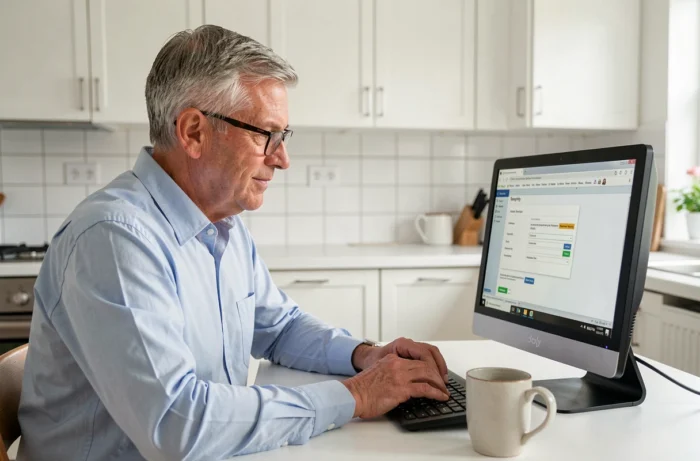
Connecting to Akeonet webmail: settings to check
Have you ever received an error message when trying to connect? In most cases, the problem comes from a configuration detail, not a service outage.
Access via the browser
The Akeonet webmail opens from any recent browser. Type the address of the login portal, then enter your username (often in the format [email protected]) and your password. Make sure you don’t have any accidental uppercase letters activated by the Caps Lock key.
Configuration in a mail client
To use software like Thunderbird or the Windows Mail app, you will need the SMTP server settings for sending and the IMAP (or POP) server for receiving. This information can be found in the Akeonet client area or in the welcome email received when the account was created.
Here are a few points to check during configuration:
- The encryption protocol must be enabled (SSL/TLS). An unencrypted port exposes your credentials in plain text over the network.
- The requested username is the full email address, not just the part before the @.
- If your mail client refuses the connection after a password change, delete the old saved password and enter the new one manually.
Akeonet password security: what really protects your account
The password remains the first barrier between your mailbox and a malicious person. Have you noticed that some services impose complexity rules that seem excessive? In a professional or academic messaging system, these constraints have a specific reason.
A short or reused password across multiple sites is the most exploited vulnerability during phishing campaigns targeting the educational sector. Cyberattacks against the National Education have multiplied in recent years, sometimes complicating the preparation for entire school years.
Here are some concrete reflexes to adopt:
- Choose a password of at least twelve characters, mixing letters, numbers, and symbols. A transformed short phrase works well: “MyCat!eats2kibbles” is stronger and easier to remember than a random code.
- Never reuse the same password as on another service (social network, e-commerce site). If one is compromised, all are.
- Enable two-factor authentication when offered. This mechanism adds a verification step with a temporary code (sent via SMS or through an app) in addition to the password.
- Do not save your password in a browser on a shared computer. Prefer a dedicated password manager.

Phishing targeting academic messaging: recognizing an attempt
Phishing is the most common attack method against professional email accounts. The principle is simple: you receive an email that looks like an official communication and asks you to click on a link to “verify your account” or “update your information.”
No legitimate service asks for your password via email. If a message redirects you to a login page, check the address in the browser’s address bar before entering anything. A URL with unusual characters or a slightly different domain (akeonet-secure.com instead of the official domain) is a warning sign.
AI-powered phishing campaigns now produce messages without spelling mistakes, with a convincing tone. The visual criterion is no longer sufficient to spot a fake email. Get into the habit of checking the full sending address and hovering over links without clicking to read the actual URL.
If in doubt, do not click. Log in to your Akeonet mailbox directly via the usual portal address, without going through the link contained in the suspicious message.
Daily management of Akeonet messaging: keeping a functional mailbox
An overloaded mailbox slows down the reception of new messages and complicates the search for information. Regularly archiving old messages and emptying the deleted items folder frees up space without losing data.
Create a few thematic folders to organize your important exchanges. Three or four categories are sufficient in most cases. An overly complex system ends up being abandoned within a few weeks.
If you leave a position or change institutions, remember to export your useful contacts and messages before the account is deactivated. Some institutions delete email data within a defined period after an agent’s departure, in accordance with GDPR obligations regarding the retention of personal data.
The Akeonet mailbox remains a reliable tool as long as you adhere to a few basic principles: direct access rather than redirection, a strong and unique password, vigilance against suspicious emails. These habits, once established, require little effort daily and effectively protect your exchanges.