
Footclubs is based on a web architecture designed for wide screen resolutions. On mobile, the portal footclubs.fff.fr loads the entire DOM without appropriate media queries, resulting in overlapping menus, truncated form fields, and sessions that expire at the slightest phone standby. We recommend considering every mobile login attempt as a technical workaround, not as intended use by the platform.
Cache Management and Session Cookies on footclubs.fff.fr for Mobile
The Footclubs portal uses short-duration session cookies. On a mobile browser, switching to the background (changing applications, screen locking) often invalidates the session. The result: a blank page or a redirect to the login form without an explicit error message.
To limit these disconnections, we recommend disabling the browser’s data saver. This feature, available on Chrome mobile and Safari, compresses requests via an intermediary proxy that can alter the cookies sent to the FFF server. On Chrome, the setting is found in Settings > Privacy. On Safari, ensure that private browsing mode is disabled, as it purges cookies with each tab closure.
A rarely documented point: the portal does not support multiple simultaneous tabs. Opening Footclubs in a second tab invalidates the session of the first. On mobile, this situation frequently occurs when the browser restores tabs after a restart. Before each login, closing all existing tabs avoids this conflict.
The detailed guide for logging into Footclub FFF on mobile outlines browser settings specific to each operating system.

FFF Maintenance and Downtime: Anticipate Before Connecting While Traveling
The FFF carries out maintenance operations on Footclubs and Foot2000 that render the platforms completely inaccessible for an entire day. No requests can be processed during these periods. For a manager or educator traveling on match day, discovering the unavailability when entering a match sheet represents a real operational problem.
Anticipating maintenance windows is as useful as mastering the login procedure. Regional leagues generally relay these announcements on their websites and social media a few days before the outage. We recommend checking your league or district’s website the Friday before a competition weekend.
Specialized media have reported that the FFF has acknowledged recurring bugs on Footclubs after several days of disruptions, particularly during peak times related to license entry. Therefore, instability is not marginal; it is part of the current operation of the platform.
Footclubs Companion on iOS and Android: Actual Functional Scope
The Footclubs Companion app, available on both stores, does not replace the web portal. It covers a limited scope: viewing schedules, results, team composition. Heavy administrative functions (license management, transfers, complete match sheet entry) remain exclusive to the main portal.
User feedback on the App Store is mediocre. Reports focus on frequent crashes, slow synchronization with the central server, and the lack of notification in case of silent disconnection. The app is not a reliable substitute for urgent administrative tasks.
WebApp FMI: The Most Stable Option for the Match Sheet
For the Computerized Match Sheet, the FFF has deployed a WebApp FMI that replaces the historical 3.9.0 application, which is no longer available on the latest versions of Android. This WebApp works directly in the mobile browser without installation from a store.
According to league communications, the WebApp FMI offers better stability than the old native application. Its deployment is authorized across all territories. For clubs that were still using version 3.9.0, migration to the WebApp FMI is the only option on recent Android.
- Check the compatibility of the mobile browser (up-to-date Chrome or Safari) before match day
- Perform the initial setup of the WebApp FMI on a stable Wi-Fi network, not on the field with an unstable 4G connection
- Reset the settings at the start of the season, as the resumption of competitions causes a reset of previous configurations
Footclubs Credentials: Club Correspondent and Security Best Practices
Each club has a Footclubs correspondent who manages the creation, modification, and deletion of user accounts. Credentials are personal and nominative. The FFF explicitly prohibits generic credentials shared among multiple club members.
On the field, we observe that this rule is rarely respected in small amateur clubs. A single credential circulates among the president, the secretary, and the educator. The risk: a password change by one blocks all others, often on Saturday morning before a trip.
- Each person who needs to use Footclubs while traveling must have their own nominative credential (typical format: first letter of first name + last name)
- Save the password in the phone’s native password manager (iCloud Keychain, Google Password Manager) to avoid input errors on a small screen
- Contact the club’s Footclubs correspondent in case of access loss; the reset procedure must go through this referent
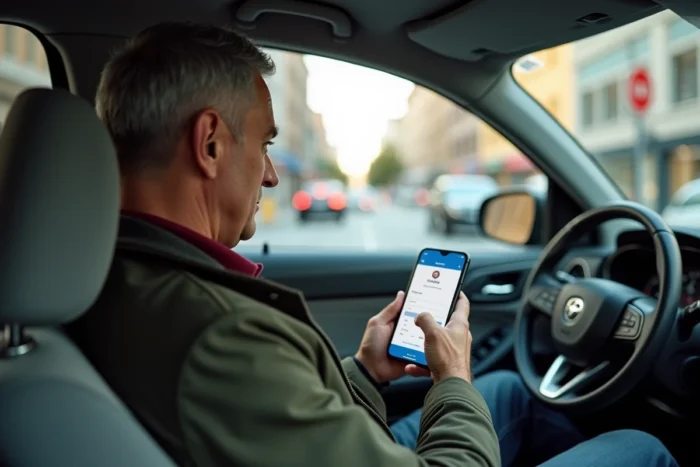
Mobile connection to Footclubs remains an exercise in patience and preparation. Preparing your credentials, checking the platform’s status, and prioritizing the WebApp FMI for match sheets are the three concrete levers to reduce blockages while traveling. The FFF has acknowledged the current limitations of the system; it remains to be seen whether future updates will truly improve the smartphone experience.